Apps & Devices
German4K Ultra: our new app sets itself up – and what distinguishes it from Pro
6 Min. reading time · Updated on 18. September 2026
. Reading time
Yesterday we introduced German4K Pro to you – our own App instead of third-party players. Today we are following up: German4K Ultra is the second proprietary app, and it is now our recommendation for Fire TV Stick, Android TV, Google TV, Android phones, and tablets. Why a second app? Because we wanted an interface that feels like a modern streaming service: fast, organized, with a real program guide – and above all, one that you no longer have to set up yourself.
German4K Ultra: Live TV, Movies, Series, Recordings, and Program Guide on the left – in the middle, what you watched last.
Zero Setup: The App Knows Who You Are
This is the biggest difference from everything you've known so far. If your device is paired with us – because you logged in once, scanned the QR code, or sent us a photo – then German4K Ultra starts and sets itself up. No server address, no username, no password. The App retrieves your access, loads channels, movies, and series, and is ready after a few seconds. And because the pairing is linked to the device, it applies to both Ultra and Pro equally.
If the device is not yet paired, the start screen shows "Almost there" with three paths – you choose the one that is easiest for you:
- Log in now: Type in the username and password from your order, once.
- Scan QR code: The page opens on your phone, enter access data or M3U link there – no typing with the remote control.
- Send a photo to us: MAC address and device code are on the screen, we set everything up.
Three paths, one goal: log in, scan, or send a photo. After that, the app sets itself up.
What Ultra Can Do
- Program guide in a time grid with Catch-up on hundreds of channels: select a missed show, watch from the beginning.
- Two playback engines: Ultra plays almost every format – and automatically switches the engine in case of a disruption instead of showing a black screen.
- Automatic server switching: if one connection fails, the app quietly takes the next one. No more switching under "Change access".
- Multiview: multiple channels simultaneously in the grid – worth its weight in gold on match days.
- Profiles and Kids Mode, favorites, history, continue watching across devices via backup.
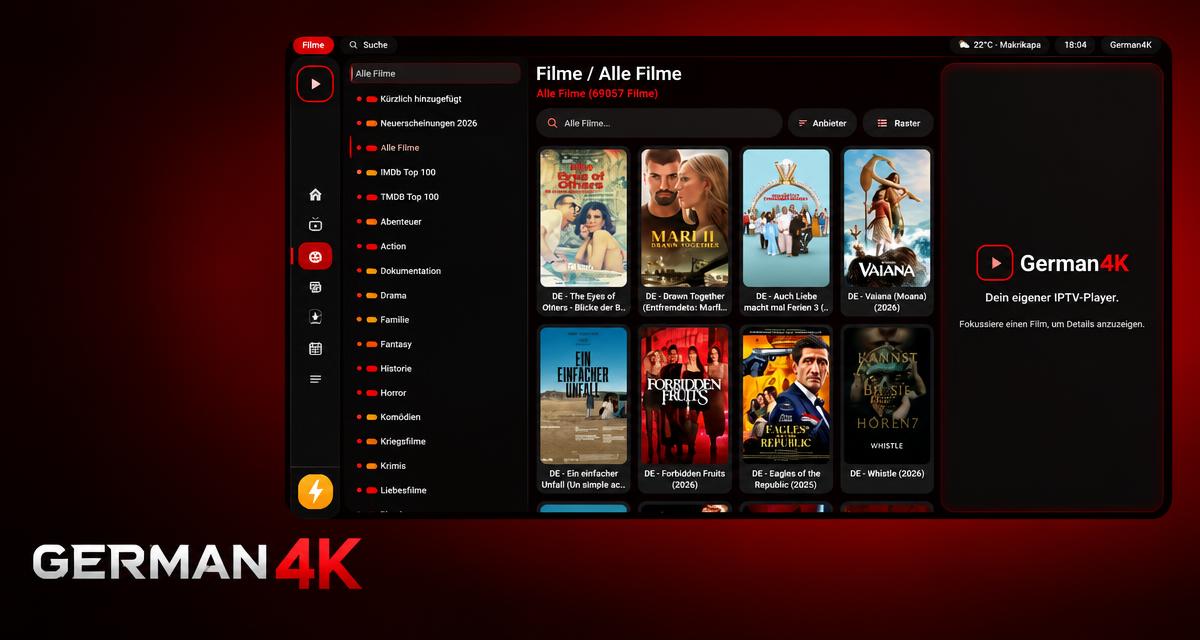
- Movies and series with posters, genres, new releases, and search across everything.
- German pre-set with German audio track, 24-hour time, dark design for remote control and touch.
The program guide: shows in a time grid, current shows highlighted, Catch-up where the channel offers it.
Ultra or Pro – Which Fits You?
| German4K Ultra | German4K Pro | |
|---|---|---|
| Recommendation | Yes – for all new devices | If you like it classic |
| Setup | Automatically, once the device is paired | Log in once under "Add access" |
| Interface | Modern, sidebar, continue watching | Classic, like well-known players |
| Program Guide | Time grid with Catch-up | Yes, simple |
| Multiview | Yes | No |
| Server Failure | Switches automatically | Manually under "Change access" |
| Downloader Code | 8781950 | 3781465 |
| Price | Free, no license | Free, no license |
In short: Ultra is the App we use ourselves. Pro remains because some like the simple interface or have a very old stick where less is more. Both belong to your access, both receive updates directly in the app.
Movies and series with posters and genres – new releases and top lists at the top.
Installation in Three Steps
1. Open Downloader
Install the free App "Downloader" from the store on the Fire TV Stick or Android TV. Once under Settings → My Fire TV → Developer Options, allow "Apps from unknown sources" for the Downloader.
2. Enter Code 8781950
In the Downloader, type the code 8781950 and confirm with "Go". German4K Ultra will download and install itself. On a phone or tablet, instead open german4k.com/ app in the browser and tap on "Download German4K Ultra".
3. Start
Paired device: done, the App sets itself up. New device: "Log in now", QR code or photo to us – see above. Everything will be there the next time you start.
Already Have German4K Pro?
Then everything stays as it is – Pro continues to run and receives updates. If you want to try Ultra, simply install it additionally: your device is already paired, Ultra sets itself up automatically upon first launch. If you like it, you can delete Pro afterwards or keep both.
Updates Without Reinstallation
If there is a new version, Ultra reports it at startup, downloads it at the push of a button, and starts the installer – you just confirm "Install". Nothing to delete, no settings lost, no Downloader required.
Read more & Set up
- German4K Ultra and Pro Comparison — Downloader codes, instructions, and screenshots of both apps
- Installing IPTV on the Fire TV Stick — Illustrated step-by-step instructions
- Setting up IPTV on Android TV — For boxes and TVs with Android TV
- German4K Pro: the classic app — The post about the first proprietary app
No access yet? Test German 4K for 24 hours for free – the app will set it up for you.
FAQ
What does German4K Ultra cost?
Nothing. The App belongs to your German 4K access – no license, no annual fee, no trial period.
Do I have to type anything into German4K Ultra?
Only if your device is not yet paired. Then enter your username and password once, scan the QR code, or send us a photo of the start screen. After that, the App sets itself up at every start.
Can I use Ultra and Pro at the same time?
Yes. The pairing applies to both Apps on the same device. Simply install Ultra additionally – it sets itself up without you having to type anything.
Does German4K Ultra run on Samsung or LG?
No, the Apps from the Samsung or LG store remain there. Ultra and Pro are available for Fire TV, Android TV, Google TV, Android phones, and tablets.
How do I get updates?
The App reports new versions itself, downloads them, and starts the installer. You just confirm "Install" – nothing to delete, nothing to reconfigure.
What if a channel shows no picture?
Ultra automatically tries the second playback engine and the second connection in case of a server failure. If it remains black, send us the channel name and the MAC address from the App via WhatsApp or Telegram – we will check it immediately.