Basics
Manage IPTV playlist yourself: your personal configuration link
7 Min. reading time · Updated on 10. June 2026
. Reading time
Everyone watches TV differently. One person loves German channels and sports, another prefers international programs or a huge archive of films and series. That is exactly why we at German 4K have introduced self-management: With your personal configuration link, you can assemble your playlist so that it truly fits you – with no waiting time and without every step requiring our Support. In this guide, we will show you step-by-step everything that is possible and how to get the most out of your individual channel list.
Your personal configuration link – the playlist now belongs to you
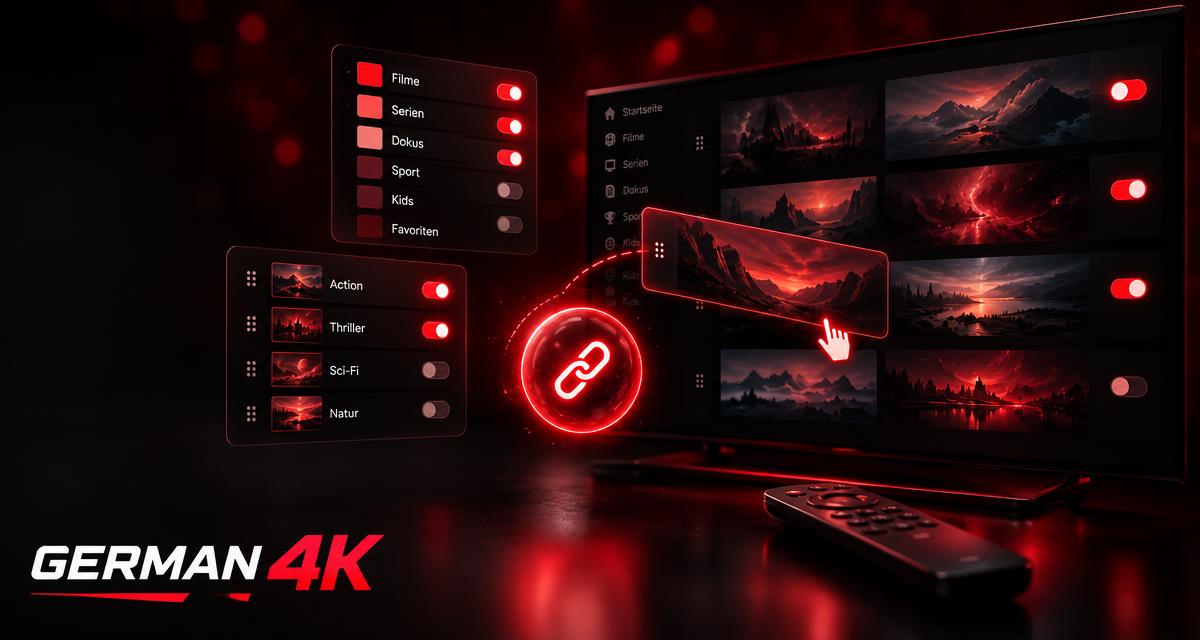
The centerpiece is your personal configuration link. Through this link, you open a clear area where you manage your own playlist yourself. You decide which content is displayed, in which order it appears, and how tidy your interface looks. Adjustments affect your channel list directly – so you maintain full control over your IPTV experience at all times without having to wait for anyone.
This saves time and makes television more personal: instead of scrolling through categories that do not interest you, you only see what you actually use. With just a few clicks, your playlist becomes your very own TV world.
Live TV to your taste: Turn countries and categories on and off
In the Live TV section, you determine which countries and which categories are displayed at all. Do you mainly watch German channels? Then simply hide countries that you never open. Do you want to keep international programs in addition? Then leave them activated. Every category can be activated or deactivated with one click – exactly as it fits your viewing habits.
The advantage is obvious: a slim, clear channel list without unnecessary clutter. You find your favorite channels faster and no longer have to work your way through categories that play no role for you.
Adjust the order via Drag & Drop
It becomes even more convenient with the drag-and-drop function: You can easily rearrange the order of your Live TV categories by dragging and dropping. Move your most important categories to the very top so they are immediately at hand, and sort rarely used ones further down. This way, your personal top selection is always reachable at a glance – without long searches.
Sort VOD individually: Movies & series tidied up
You also have the say in the VOD area (Video on Demand, i.e., movies and series on call). Just like with Live TV, you can activate, deactivate, and sort individual VOD categories according to your wishes. Keep only the genres and collections that interest you and put them in the order that makes the most sense for you. This keeps your film archive clear instead of overwhelming you with endless lists.
“Full VOD” – everything with one click
Would you like to turn the complete offering on or off at once? That's what the “Full VOD” function is for. With a single click, you activate or deactivate all VOD categories simultaneously. This is practical if you want to quickly get a complete overview or, conversely, focus entirely on Live TV. You save yourself the trouble of clicking every single category – maximum flexibility, minimal effort.
Device change made easy: the “Kick Out” function
Do you know the situation? You have left your stream running on the television and now want to continue watching on your smartphone, tablet, or Fire TV Stick. This is exactly where the “Kick Out” function in the “User” area helps. With it, you specifically end a currently active stream yourself – for example, when switching from the television to a mobile device.
The move from one device to the next thus succeeds easily and at your own pace. You don’t have to ask Support first, but handle the device change conveniently yourself.
Fix connection problems: “Clear ISP Lock”
Should connection problems occur, the “Clear ISP Lock” function is also available to you. With it, you reset the connection to resolve possible connection issues. This is a useful first step that you can perform yourself before you need further help.
Here too: You remain capable of acting and can clear minor stumbling blocks out of the way independently. And if questions still remain, our German-speaking Support is, of course, still there for you.
Why self-management is worth it for you
The new functions have a common goal: to give you more freedom and clearer operation. You design your IPTV experience yourself – flexible, personal, and adjustable at any time. These are your advantages at a glance:
- Full control over your playlist – via your personal configuration link
- Individually activate or deactivate Live TV countries and categories
- Adjust the order of Live TV categories via drag & drop
- Activate, deactivate, and freely sort VOD categories
- “Full VOD”: turn all VOD categories on or off with one click
- “Kick Out”: end the active stream yourself and switch devices
- “Clear ISP Lock”: reset connection to fix connection problems
This makes your channel list exactly what you want it to be: tidy, personal, and tailored to your viewing habits.
How to get your personal configuration link
The best part: You retrieve your personal configuration link yourself – immediately and without waiting time. Simply open our “Configure Playlist” page, enter the username and password of your German 4K access, and your link will be displayed along with a QR code. One click opens the editor in which you assemble Live TV countries, categories, and VOD to your taste. Should you ever need help, our German-speaking Support is available for you at any time via WhatsApp.
Assemble your playlist yourself from now on – with your personal configuration link.
Frequently Asked Questions
What is the personal configuration link?
The personal configuration link is your own access through which you manage your IPTV playlist yourself. There, you activate or deactivate Live TV countries and categories, sort categories via drag & drop, organize your VOD content, and use functions like “Full VOD”, “Kick Out”, and “Clear ISP Lock”. You retrieve the link yourself via our “Configure Playlist” page: enter the username and password of your access – and you will receive it along with a QR code.
How do I switch my stream from one device to another?
The “Kick Out” function in the “User” area is for this purpose. With it, you end the currently active stream yourself, for example, if you want to switch from the television to a smartphone, tablet, or Fire TV Stick. Afterwards, you simply start playback on your new device.
What does “Clear ISP Lock” do?
With “Clear ISP Lock”, you reset the connection to resolve possible connection problems. It is a simple first step that you can perform yourself. If problems persist, our German-speaking Support will be happy to help you at any time.
Can I turn all VOD categories on or off at once?
Yes. Via the “Full VOD” function, you activate or deactivate all VOD categories with just one click. This way, you don’t have to adjust every category individually and still maintain a full overview.